
What is VAT/Tax Label Customization?
AliBill lets you change the text labels used for VAT/Tax lines on your generated invoices. This is helpful if your region uses different wording (e.g., Tax, GST, IVA, Sales Tax) or if you want a specific invoice format.
What You Can Customize
- Per-order tax labels (inside each order block)
- VAT label
- EU tax/VAT label
- Totals tax labels (in the totals/footer section)
- Total VAT label
- Total EU VAT label
You can also optionally show a calculated VAT/Tax rate and inject that rate into a custom label
using the placeholder percentage%.
Where the Labels Appear
On the Invoice page, tax labels can appear in two main places:
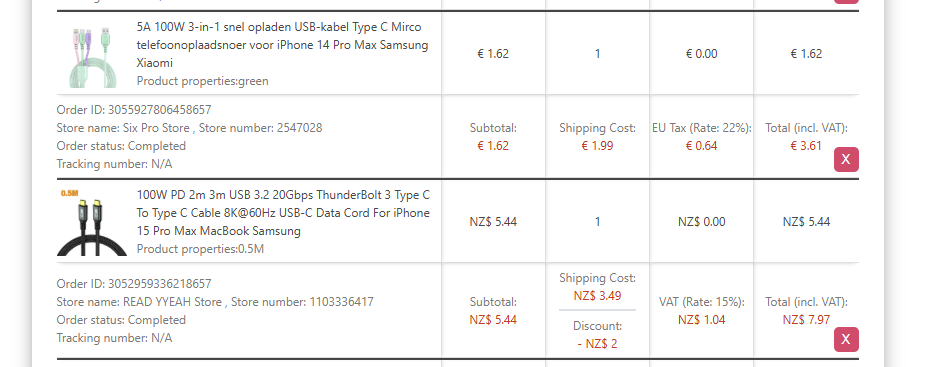
1. Per-Order (Order Block / Tax Column)
- VAT line (example default:
VAT (Rate: 20%):) - EU line (example default:
EU Tax (Rate: 20%):)
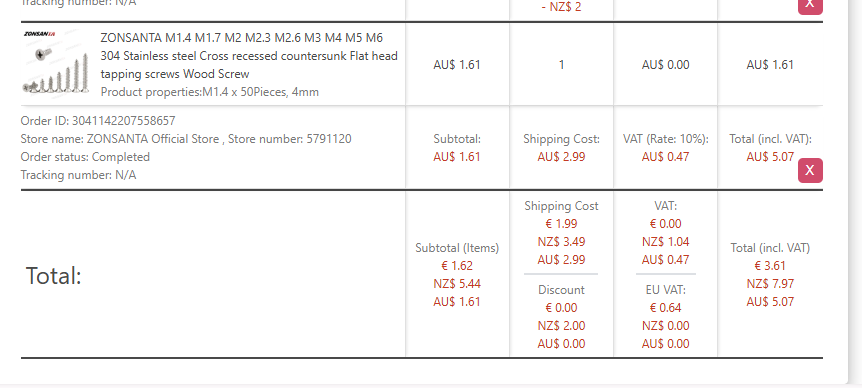
2. Totals Section (Bottom Totals Row)
- Total VAT label (example default:
VAT:) - Total EU VAT label (example default:
EU VAT:)
Note: These labels are only visible if Invoice Options → Tax is enabled.
How to Change the Labels
- Open the Invoice page.
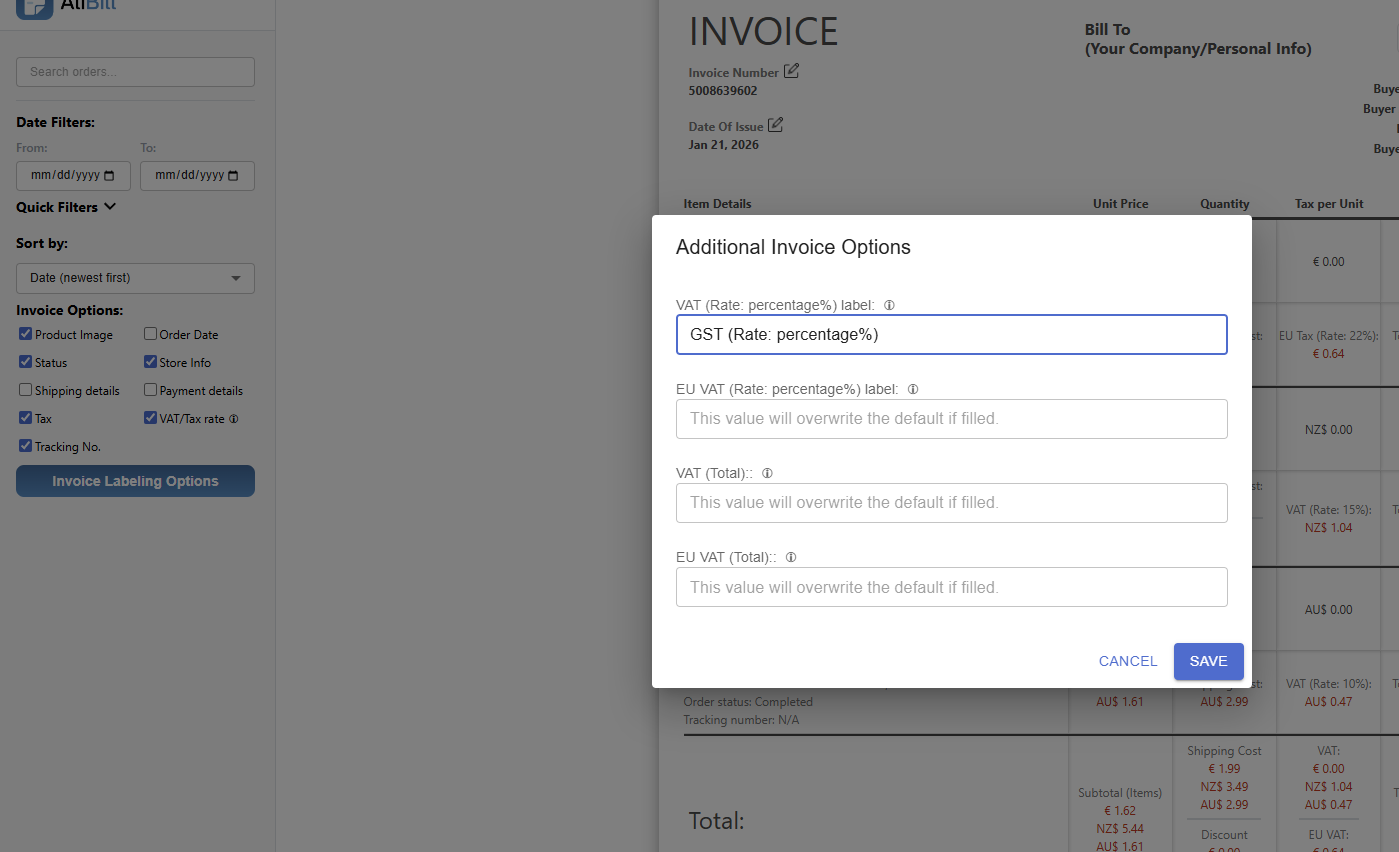
- In the left panel (Side Menu), click "Invoice Labeling Options".
- In Additional Invoice Options, edit any of the following fields:
- VAT (Rate: percentage%) label
- EU VAT (Rate: percentage%) label
- VAT (Total)
- EU VAT (Total)
- Click "Save".
Changes are saved to your browser storage and apply immediately to the Invoice page.
Reset Back to Defaults
To return to default labels:
- Open Invoice Labeling Options
- Clear the label field(s) you customized (leave blank)
- Click Save
Blank fields mean: use the built-in default labels.
Using percentage% Placeholder
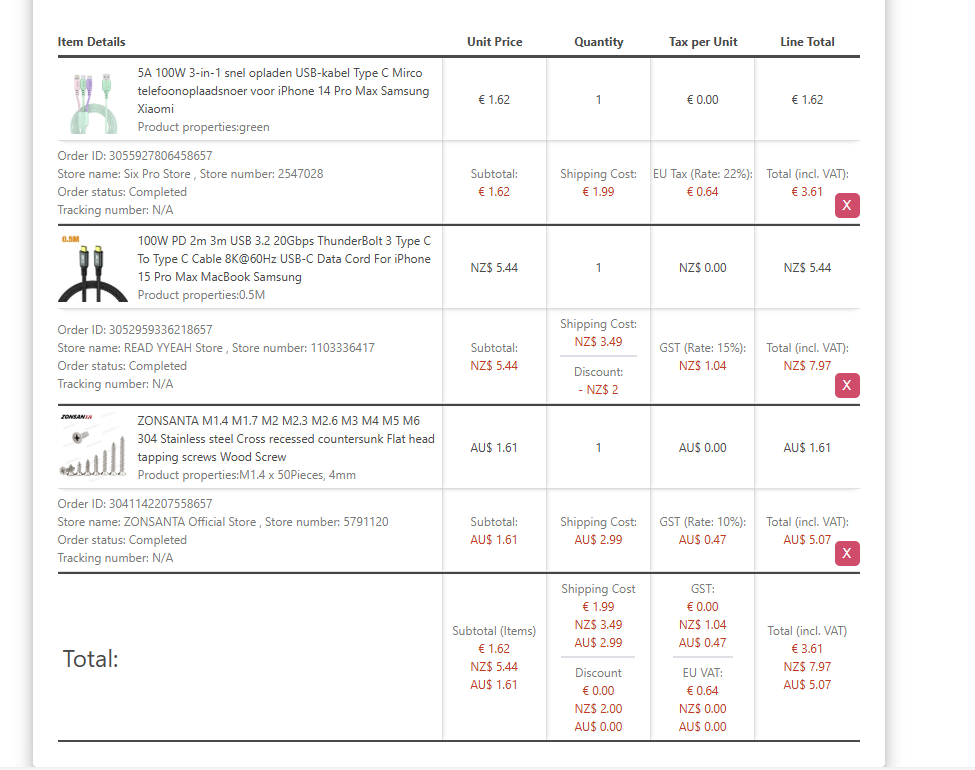
If your custom label contains the text percentage%, AliBill will replace it with the calculated VAT/Tax rate.
Examples
Tax (percentage%)VAT percentage%GST - percentage%
Important behaviors:
- AliBill adds the
:at the end automatically. Recommended: don't add your own trailing colon. - If the rate cannot be calculated from scraped numbers, the rate may display as
N/A.
Showing or Hiding the VAT/Tax Rate
In the Side Menu, under Invoice Options, enable:
- VAT/Tax rate
When enabled, the VAT line can display a calculated rate.
Calculation Used
The formula used to calculate the rate:
(total × 100) / (total - tax) - 100
Editing the Rate Text
On the invoice itself, the rate text is editable (you can click it and overwrite it before printing/saving).
Common gotcha: If you set VAT (Rate: percentage%) label to a value containing
percentage% but keep VAT/Tax rate turned off, the placeholder may be
replaced with N/A.
Fix: Turn VAT/Tax rate on.
Recommended Setups
Replace "VAT" with "Tax" Everywhere
- VAT (Rate: percentage%) label:
Tax (percentage%) - EU VAT (Rate: percentage%) label:
EU Tax (percentage%) - VAT (Total):
Tax - EU VAT (Total):
EU Tax - Enable Invoice Options → VAT/Tax rate
Keep VAT Wording but Change Formatting
- VAT (Rate: percentage%) label:
VAT @ percentage% - VAT (Total):
Total VAT
Troubleshooting
I don't see any VAT/Tax lines
- Enable Invoice Options → Tax.
My custom label isn't being used
- Re-open Invoice Labeling Options and confirm you clicked Save.
- Empty fields revert to defaults.
The rate shows N/A
- The rate can be
N/Aif scraped totals/tax values don't allow the calculation. - If you're using
percentage%on the VAT label, also ensure VAT/Tax rate is enabled.