
Quick Single Order Document (From Order List)
For a quick document from a single order without opening the full invoice page:
Option 1: Edit Invoice
- On the AliExpress Order List Page, each order item displays an AliBill dialog with two buttons
- Click "Edit Invoice" on any order
- If the order is already stored: The invoice page opens immediately with that order pre-selected
- If the order is not stored yet: The extension automatically collects the data first, then opens the invoice page
Option 2: Save as PDF
- Click "Save as PDF" on any order in the order list
- If the order is already stored: A PDF is generated automatically
- If the order is not stored yet: The extension collects the data first, then generates the PDF
Note: The "Save as PDF" option uses default invoice settings. For customization, use "Edit Invoice" instead.
Full Document Generation Workflow
Step 1: Open Invoice Page
- Click the AliBill extension icon
- Click "Go to Invoice Page"
Step 2: Select Orders
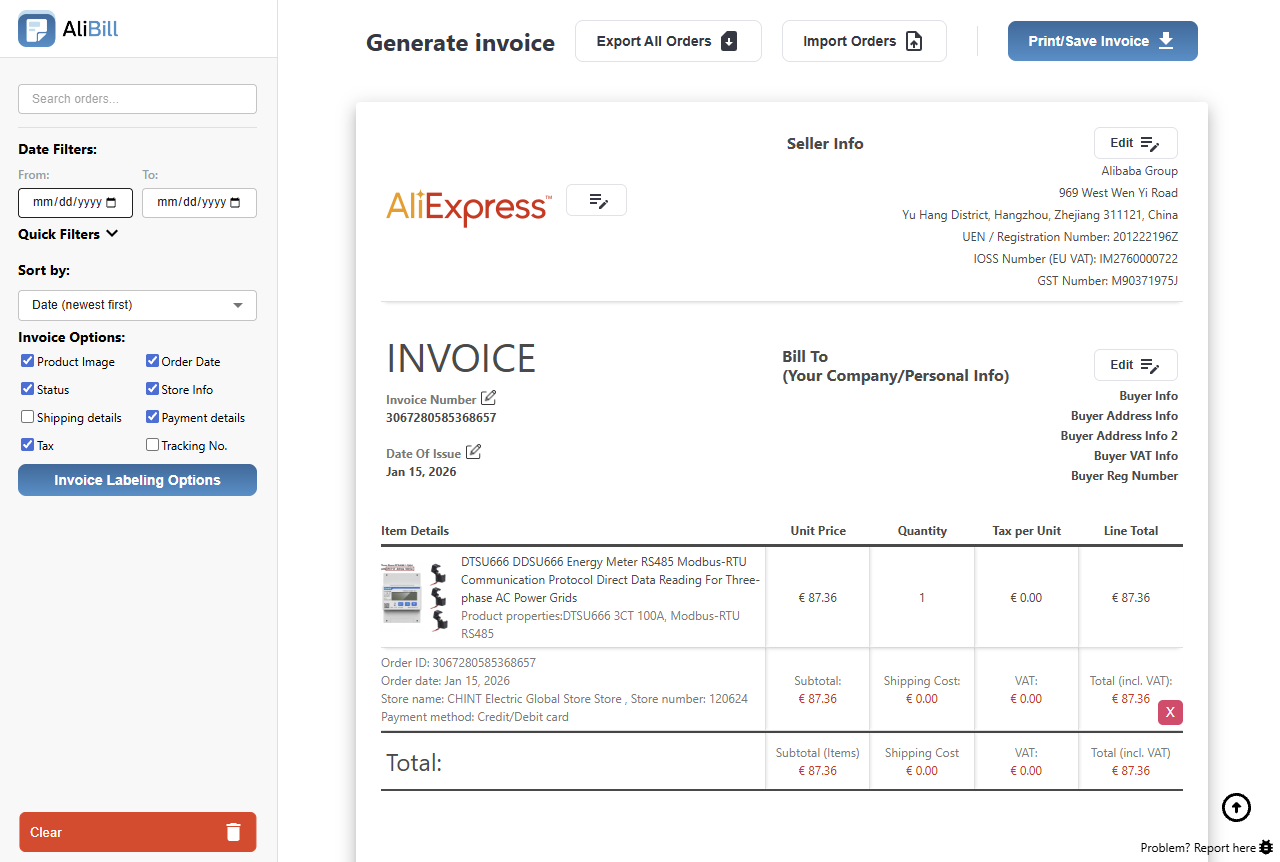
- Use the search box to find specific orders by order ID, seller name, or product title
- Use date filters to filter orders by date range
- Use sorting options: Date or Price (ascending/descending)
Important: Date filters on the invoice page only filter orders that are already stored. To collect new orders, use the order list page.
Step 3: Customize Appearance
Use the side menu "Invoice Options" to toggle visibility of:
- Product Image
- Order Date
- Status
- Store Info
- Shipping details
- Payment details
- Tax
- Tracking No.
Step 4: Edit Document Details
Click "Edit Invoice" in the header to edit:
- Invoice number: Defaults to order ID, can be customized
- Invoice date: Defaults to order date
- "Bill To" section: Your company/personal information
Step 5: Customize Labels (VAT/Tax)
Click "Invoice Labeling Options" in the side menu to customize VAT and EU VAT labels. Use percentage% placeholder to insert calculated tax rates.
Step 6: Customize Logo and Seller Info
- Logo URL: Enter a custom logo URL (recommended ratio 4.15:1)
- Seller Info: Edit store name and URL if needed
Step 7: Preview and Export
The invoice is displayed in A4 format. Review and export using the Exporting & Printing guide.