
Step 1: Install from Chrome Web Store
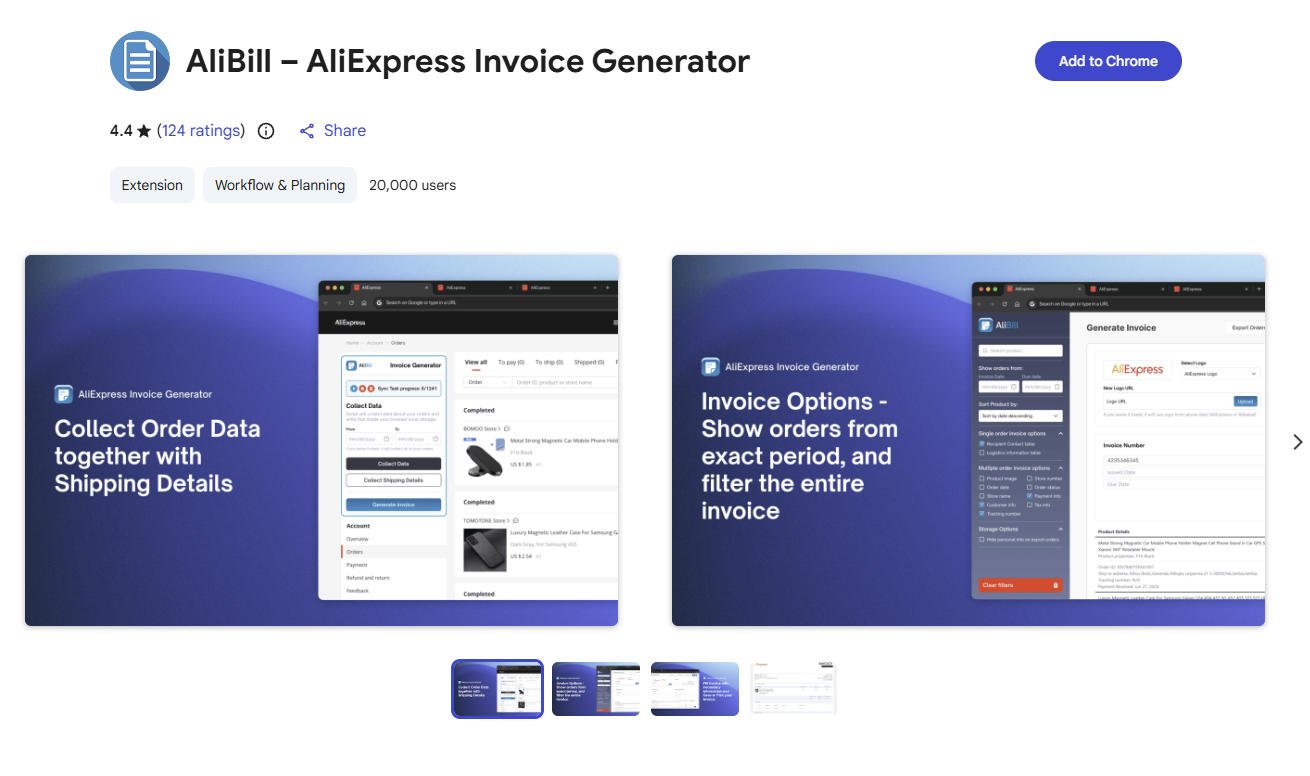
- Open the AliBill Chrome Web Store page
- Click the "Add to Chrome" button
- In the confirmation dialog, click "Add extension"
- Wait for the installation to complete
Step 2: Pin the Extension
After installation, pin the extension to your Chrome toolbar for easy access:
- Click the puzzle icon (extensions menu) in the Chrome toolbar
- Find AliBill in the list
- Click the pin icon next to AliBill
The AliBill icon will now appear in your toolbar for quick access.
Step 3: Understand Permissions
AliBill requires certain permissions to function. Here's what each permission does:
Storage Permission
Used to save order data locally in your browser. Your orders stay on your device; see our Privacy Policy for the small amount of technical data the extension does send.
Access to AliExpress Domains
Required to read order information from AliExpress pages. The extension accesses:
aliexpress.com- Main AliExpress domainaliexpress.ru- Russian AliExpress domainaliexpress.us- US AliExpress domain (optional)
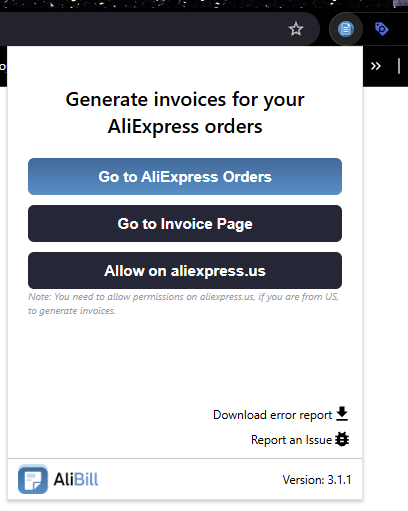
US Users: If you use aliexpress.us, you may need to manually grant permission. Click the AliBill extension icon and look for a permission prompt to enable access to the US domain.
Step 4: Verify Installation
- Click the AliBill icon in your toolbar
- You should see the extension popup with options like "Go to AliExpress Orders" and "Go to Invoice Page"
Next Steps
Now that AliBill is installed, you're ready to start collecting orders and generating documents: